It is rare that I see a dialog that has been around for a long time in macOS that I have never seen. It happened to me yesterday. And the dialog itself was confusing.
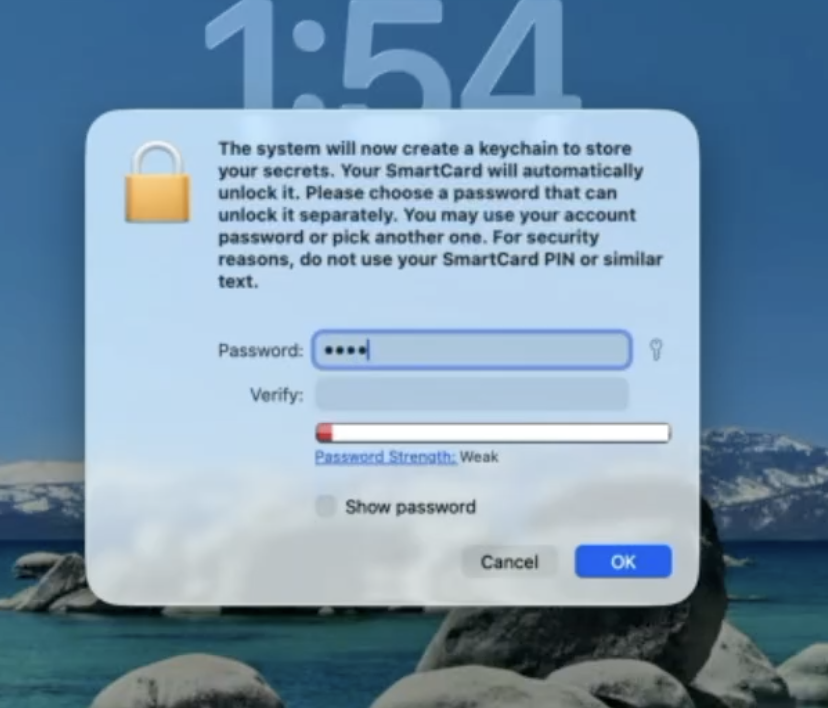
When logging into macOS with a SmartCard at initial login, I got a dialog that said:
“The system will now create a keychain to store your secrets. Your SmartCard will automatically unlock it. Please choose a password that can unlock it separately. You may use your account password or pick another one. For security reasons, do not use your SmartCard PIN or similar text.”
It turns out that you are supposed to enter in the user’s local password here. If you use a different password, it will work fine until you log in with a password rather than the SmartCard. Once you do that, the Login keychain that was created during the initial SmartCard login will get moved aside and a new keychain will get created with the user account password. The keychain will not get out of sync and logging in with both the SmartCard and a username/password will work fine.
If you are curious about how I figured this out, read on…
The dialog presented was confusing on many levels. It wasn’t asking for my login password but rather having me set a password for a new keychain. The user account already had a password but it wasn’t asking for that. I was logging in with a SmartCard, and I know that a SmartCard can log in without a password and can also unlock the user’s keychain without a password. So why did it need a password for a new keychain? On top of all this, there are 2 keychains for the user account (one “login” keychain that is file-based, and one “Local/iCloud” keychain that is secure enclaved-backed and based on the iOS keychain). Which keychain requires the password since two needed keychains were created (the Login keychain and the Local keychain)?
I am getting ahead of myself. Here is the problem I was trying to solve. I wanted to be able to have a Mac fully set up with the most recent macOS version and allow initial login with a SmartCard. Using our DFU Blaster Pro app, the Mac gets wiped and updated to the most recent version of macOS. After that completes, the Mac automatically enrolls in MDM using Automatic Device Enrollment. A local admin is created during device enrollment as well. After enrollment, a package is sent down to create a local user that has an attribute in local directory service that has the RFC 822 username defined on the user’s SmartCard. MDM also pushes down a SmartCard attribute mapping file that maps the RFC 822 username from the SmartCard certificate to an attribute on the local user account.
It worked great. The Mac was at the login window asking for the local admin username. I inserted a smart card and the login window changed to enter a PIN for the SmartCard user. After entering the PIN, I expected to wait a bit and then be at the desktop. However, I saw the “The system will now create a keychain to store your secrets” dialog.
I put in a new generated password from my brain and everything seemed to work fine. I was able to open Keychain Access and the keychain was unlocked. I logged out and logged in with the user’s password and checked the keychain, and it was again unlocked. How could a keychain have 2 passwords?
So I investigated. It turns out the Login Keychain didn’t have 2 passwords, but rather the keychain created when logging in with a SmartCard was replaced when I logged in with a user’s password. Here is what happened:
-
When the account was created with a password during MDM setup, the account got a password and home directory, but no keychain was created.
-
When the user logged in using a SmartCard, a keychain had to be created. While a SmartCard can unlock a keychain, you cannot open Keychain Access or view a keychain item without entering in a password. The system forces you to set a password when creating the keychain so you’ll have a known password to use to view passwords in Keychain Access. SmartCard can unlock the keychain but you’ll need a password to view the passwords in Keychain Access. I have no idea why macOS doesn’t prompt for the local account password and use that to set the password on the new keychain.
-
When logging out and logging in with a password, macOS sees that you have a keychain with a password that doesn’t match the login keychain so the login keychain is moved aside and a new keychain is created using the login password. Any items in the login keychain are no longer available in the Login keychain, though are still in a separate keychain file in the keychain folder.
-
When logging out and logging back in as a SmartCard user using a SmartCard, macOS sees that there is a keychain that cannot be unlocked using the SmartCard but has an unknown password, so it prompts the user for the password to unlock the keychain. This password is the login user’s password since it was created when logging in with a user’s password. Once the password is given, the keychain is updated to allow the SmartCard to unlock it. This keychain is now able to be unlocked with the user’s login password and the SmartCard.
So where is the password used that the user was forced to create when first logging in with a SmartCard? Nowhere. It is associated with a keychain that was moved aside and not used any longer. If the smart card user never logged in with a password, the keychain is never moved aside and still uses that “special” password. That keychain will be moved aside as soon as the user logs into the user account using a password. If the user had any items in the keychain, they will no longer be available to the system or in Keychain Access unless added manually.
What about the iOS style keychain versus the macOS-style keychain? It seems that all of this behavior is around the macOS-style keychain and the “Local/iCloud” iOS style keychain is not related. Though perhaps related, the Local/iCloud Keychain has a “legacy login keychain” entry that cannot be viewed regardless of the password used.
Perhaps that is an investigation for another day.
Additional note: I found out from the MacAdmins SmartCard slack channel that Platform SSO will prompt with this same dialog when creating a user at login window with a SmartCard.
I also created a video of the setup:
https://twocanoes.com/video/dfu-blaster-with-automatic-device-enrollment-and-attribute-mapping/